In this post we’ll see how to install Python 3 on Windows. There are two versions of Python- Python 2 and Python 3 so the first question when you start learning Python is which release to go for, Python 2 or Python 3?
Well if you are just starting to learn and there is no old Python project to worry about the compatibility then better to go with release 3 as the final Python 2.x version 2.7 release came out in mid-2010 and the 2.x branch will see no new major releases after that so Pyhton 2.x is legacy. On the other hand Python 3.x is under active development and has stable relases over the years. So, Python 3.x is the present and future of the language.
To get more information about the differences between Python 2 and Python 3, refer the wiki page- https://wiki.python.org/moin/Python2orPython3
Installing Python 3 on Windows
To download Python go to https://www.python.org/ and select Downloads – Windows. That will take you to the page where you can download the Python installer for the current release.

Current stable release is Python 3.7.3 so click on the “Download Windows x86-64 executable installer” under the stable release to download the executable file (python-3.7.3-amd64.exe).

Once the installer is downloaded click on the downloaded installer to start the Python installation setup.
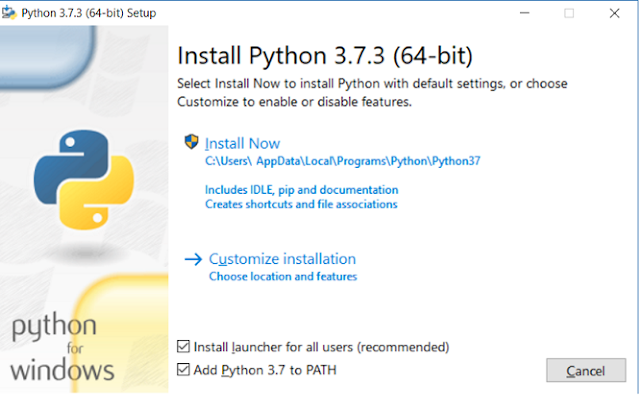
In the installation set up window-
- Install launcher for all users
- Check Add Python 3.x to PATH
Click "Install Now" link to start the Python installation.
Once the download is completed you can click on windows start button to look for the Python installation by going to applications under letter P.

Click on Python 3.x (64 bit) to open command line.
Alternatively you can go to Command Prompt and check for the installation by typing command python –version. It displays the installed version of the python.
You can enter the python command line by typing python and write your first hello word program there itself to display “Hello World”.
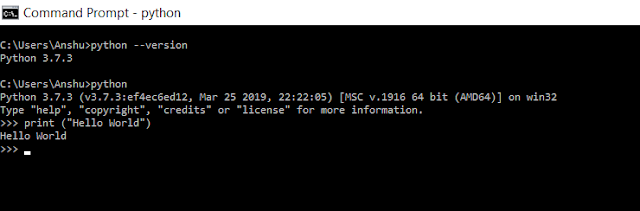
You can also use Python IDLE which is the graphical IDE for Python. In the menu you can see an option for IDLE.

That's all for this topic Python Installation on Windows. If you have any doubt or any suggestions to make please drop a comment. Thanks!
You may also like -